The short answer. monday.com collects simple signatures through a WorkForms signature question. To send a contract, lease, or offer letter for a legally binding e-signature, you add a signing app. You have three options: a native marketplace app, a DocuSign or PandaDoc integration, or a Zapier or Make workflow. The best setups send the document when a status changes, fill it from board columns, and put the signed PDF back on the item. That is what DocRunner was built to do.
What monday.com already gives you.
Start with what is in the box, because it is more than most teams use.
- WorkForms signature question. A form can include a signature field. It works well for sign-offs, acknowledgments, and intake forms. See monday's WorkForms question types.
- Files column. Every item can hold its documents. This is where a signed PDF should end up.
- Status column and automations. The status column is the natural trigger for "send this for signature" and the natural place to show where signing stands.
- Quotes and Invoices in monday CRM. monday CRM builds a quote or invoice PDF from your deal data. See The new Quotes and Invoices.
What these pieces do not do on their own is the full signing loop. That loop is: generate a document from item data, email it to one or more outside signers, capture consent and an audit trail, and file the executed copy back on the item. That is the job of a signing app.
Our view: this is the right split. monday is the system of record. Signing is a specialist job that plugs into it.
The three ways to add e-signatures to monday.com.
1. A native marketplace app
Native apps install from the monday.com marketplace and run inside your account. You connect a board, map columns to document fields, and send from the item or from a status change. Signing status writes back to the board directly.
This is the group DocRunner belongs to, and it is the route we recommend for any team that runs its process on a board. DocRunner sends packets of documents to one or more signers, fills them from your columns, updates the status at every stage, and files the signed PDF on the item. It costs one flat price for the whole account.
Native apps differ in pricing model, PDF handling, and how they deal with more than one signer. See how DocRunner stacks up on our comparison pages.
2. A DocuSign, PandaDoc, or Adobe Sign integration
If your company already pays for one of the big e-signature platforms, you can connect it. monday documents its own DocuSign app, and PandaDoc publishes a monday.com integration.
You keep the tool your legal team already approved. The trade-off is a second subscription, usually priced per user, and often a cap on how many documents you can send. DocuSign explains its limits in its envelope allowance FAQ.
3. A Zapier or Make workflow
Automation platforms can watch a board and create a signature request in another tool. Zapier and Make both publish DocuSign and monday.com connectors.
This route is flexible, and it suits one-off or low-volume needs. You build and maintain the workflow yourself, including the steps that write status and files back to the board. We ran the numbers in the hidden cost of Zapier for document workflows.
Side by side
| Native app (DocRunner) | DocuSign or PandaDoc | Zapier or Make | |
|---|---|---|---|
| Where you set it up | Inside monday | Both tools | A third tool |
| Status and file write-back | Built in | Varies by integration | You build it |
| Typical pricing model | Per account. DocRunner is $40 a month flat | Per user, with send limits | Per task, plus the signing tool |
| Best for | Teams that run the process on a board | Companies standardized on that vendor | Low volume and unusual workflows |
What a good setup looks like.
Whichever route you pick, judge it against five behaviors. If one is missing, someone on your team becomes the manual bridge between the board and the signing tool.
- It sends from a status change. Moving an item to "Approved" or "Send Contract" should be the only action a person takes.
- It fills the document from the item. Names, amounts, dates, and addresses come from columns. Nobody retypes them into a Word file.
- It takes the signer from the item. The signer's email comes from an Email column on the same row.
- It reports progress to the board. Sent, viewed or partially signed, and fully signed should each show up as a status.
- It files the signed PDF on the item. The executed copy lands in a Files column without a download and upload step.
Our view: number four is the one teams skip and regret. A board that does not know whether the contract is signed is a board people stop trusting.
A worked example, step by step.
Want the click-by-click version? See how to send a document for signature from a monday.com board.
Here is one setup in DocRunner, followed from start to finish. The board is called Client Onboarding. Each item is a new client, and this one is Harbor Dental Group.
The board has six columns that matter:
| Column | Type | What DocRunner does with it |
|---|---|---|
| Status | Status | Starts signing, then shows progress |
| Client Email | Where the packet is sent | |
| Contract Value | Numbers | Fills the fee in the agreement |
| Start Date | Date | Fills the effective date |
| Packet Link | Link | Receives a link to the live packet |
| Signed Contract | Files | Receives the signed PDF |
The whole loop looks like this:
1. ON THE BOARD
Status changes to Send Contract
2. DOCRUNNER
Builds the packet from the item's columns and emails it
3. SIGNERS
Client signs, then the account manager countersigns
4. BACK ON THE BOARD
Status reads Fully Signed and the PDF is on the item
| Client | Status | Contract Value | Packet Link | Signed Contract |
|---|---|---|---|---|
| Harbor Dental Group | Send Contract | $4,800 | ||
| Northgate Physio | Contract Sent | $3,200 | View Packet | |
| Alder & Finch Law | Fully Signed | $7,500 | View Packet | PDFSigned.pdf |
| Juniper Vet Clinic | New | $2,400 |
Step 1: Build the packet template
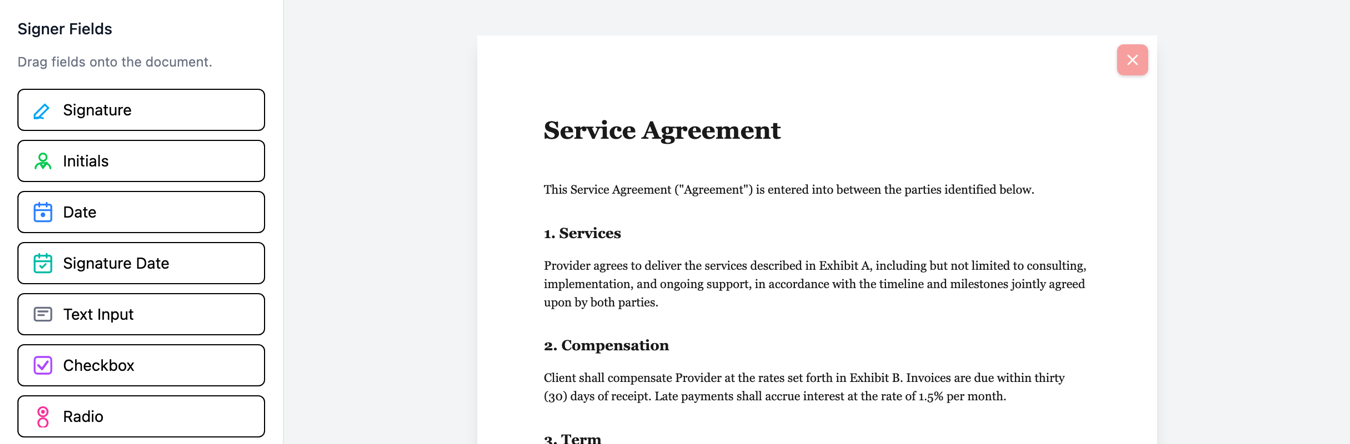
The Client Onboarding packet holds two documents that always travel together: a Service Agreement and a Mutual NDA. Upload the PDFs, then drag fields onto them. DocRunner supports signatures, initials, dates, text inputs, checkboxes, and radio buttons.
Each field belongs to a role. This packet has two: Client and Account Manager. Roles are what let one packet go to more than one person.
Step 2: Map the board
Pick the Client Onboarding board, then match columns to fields. Contract Value fills the fee. Start Date fills the effective date. The item name fills the client name.
You can add a prefix or suffix, such as a dollar sign, and translate column values into document wording where they differ. Then map each role to its email. The Client role reads the Client Email column. The Account Manager role uses a fixed address, since the same person countersigns every time.
Pull data from monday
Who signs
When to create packets
Sync back to monday
Step 3: Choose the trigger
The trigger here is the Status column changing to "Send Contract". You can also start a packet from a monday automation, or build it by hand from the item when you want to review first.
With auto-send on, the packet goes out the moment the status changes. With it off, DocRunner builds a draft for a person to check.
Step 4: Decide what the board should show
This is where a native app earns its place. You choose the status the item gets at each stage. For Harbor Dental Group it reads:
- Contract Sent when the packet goes out
- Client Signed when the client finishes
- Fully Signed when the account manager countersigns
The Packet Link column gets a link to the live packet. The Signed Contract column is set to receive the final PDF.
Step 5: Signing
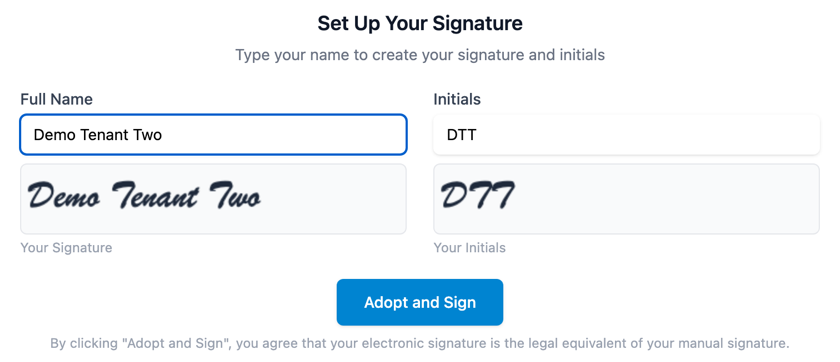
The client gets an email with a secure link. They do not need a monday.com account or a DocRunner account, and they can sign from a phone. When they finish, the account manager is emailed automatically.
Automatic reminders go to whoever has not signed yet. Test mode lets you run the whole flow on a dummy item before you go live.
Step 6: Completion
When the last signature lands, three things happen without anyone touching the board. The status flips to Fully Signed. The signed PDF uploads to the Signed Contract column. A Certificate of Signature is generated for your records.
| Client | Status | Contract Value | Packet Link | Signed Contract |
|---|---|---|---|---|
| Harbor Dental Group | Fully Signed | $4,800 | View Packet | PDFSigned.pdf |
| Northgate Physio | Client Signed | $3,200 | View Packet | |
| Alder & Finch Law | Fully Signed | $7,500 | View Packet | PDFSigned.pdf |
| Juniper Vet Clinic | New | $2,400 |
Try it on one board first. Pick the process with the most repeat volume, often leases, sales contracts, or offer letters. Build one packet, map one board, and run it in test mode on a dummy item. If the status flips and the PDF lands on the item, you have your answer.
More than one signer.
Most real documents need two or more signatures. A lease needs tenants and the manager. A services agreement needs the client and you. An offer letter needs the candidate and the hiring manager.
Check how your tool handles this before you commit. The questions that matter are simple. Can signers go in a set order? Does the next person get notified automatically? Can the board show who has signed so far?
In DocRunner, roles carry a signing order, and each completed step can set its own status on the board. That is why the example above shows "Client Signed" and "Fully Signed" as two different, visible states.
Are signatures collected this way legally binding?
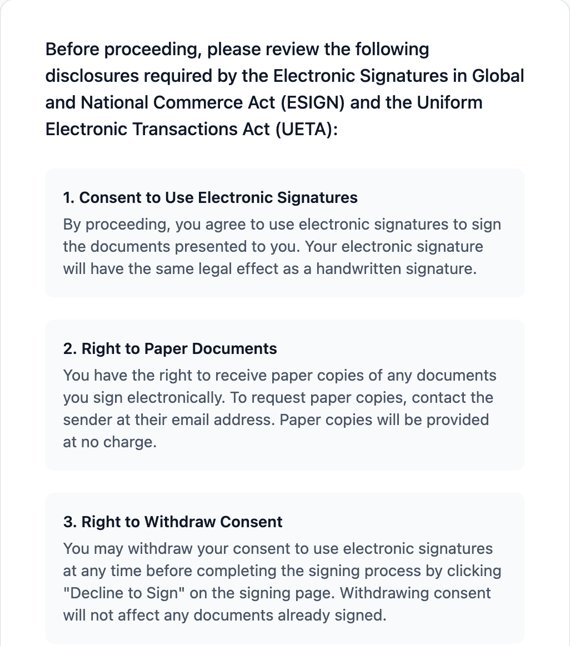
Yes, in the United States, when the basics are met. The federal ESIGN Act and the state-level Uniform Electronic Transactions Act give electronic signatures the same standing as ink.
The practical requirements are intent to sign, consent to do business electronically, a signature tied to the specific document, and a record both sides can keep. A proper signing tool captures consent, timestamps, and IP addresses, then locks the final PDF so tampering is detectable.
We cover the details in the ESIGN Act explained. Some documents, such as wills and certain notarized filings, have their own rules, so check with counsel for anything unusual.
How to choose.
- Your process runs on a monday.com board. Use DocRunner. It covers all five behaviors above, handles multi-signer packets, and costs $40 a month flat for unlimited documents and users. Start the 90-day free trial and test it on one board.
- Your legal team mandates DocuSign or Adobe Sign. Use the integration. Compliance approval is worth more than convenience. Our DocuSign comparison covers what to expect.
- You need full proposal design and quoting. A proposal platform such as PandaDoc is built for that. See our PandaDoc comparison.
- You only need an internal sign-off. A WorkForms signature question may be all you need.
Frequently asked questions.
Does monday.com have built-in e-signature?
monday.com has a signature question in WorkForms for simple sign-offs. Sending documents to outside signers with an audit trail is done through a marketplace app such as DocRunner, or through an integration.
Can I use DocuSign with monday.com?
Yes. monday offers a DocuSign app, and Zapier and Make both connect the two. You need a DocuSign subscription in addition to monday.com.
Do signers need a monday.com account?
No. With DocRunner, signers get an email link and sign in the browser on any device. They never see your board.
Where does the signed document go?
With a native app, it uploads to a Files column on the same item. In DocRunner you choose the column when you map the board.
Can one board send different documents?
Yes. Each packet template has its own trigger value, so "Send NDA" and "Send Contract" can start different packets from the same status column.
What does it cost?
It depends on the route. Per-user platforms scale with headcount. Native apps usually price per account. DocRunner is $40 per month for unlimited documents, signers, templates, and users, with a 90-day free trial.
Bottom line.
monday.com is a strong home for the process around a document: who it is for, what stage it is in, and what happens next. Add signing in a way that keeps the board truthful. The status should change on its own, and the signed PDF should land on the item.
If you want to see that loop on your own board, start a 90-day free trial of DocRunner. For a ready-made starting point, browse the document templates for monday.com.